Cut Wi-Fi 7 Latency 40%: Hardware Configuration Guide
Advertisements
Upgraded to a next-gen router only to still get hit with lag spikes during ranked matches or video calls? Learning how to properly configure Wi-Fi 7 hardware unlocks the 802.11be standard's true potential, cutting home network latency by up to 40%.
Out-of-the-box factory defaults rarely activate advanced features like Multi-Link Operation (MLO), 320 MHz ultra-wide channels, and 4K-QAM modulation across your wireless mesh. Tuning these tri-band settings eliminates packet bottlenecks between your 5 GHz and 6 GHz frequencies while keeping high-demand devices locked onto interference-free lanes.
Whether you are streaming 8K video, running wireless VR headsets, or competing in fast-paced online games, a few targeted firmware tweaks transform sluggish connections into near-wired responsiveness. Here are the exact router settings, channel widths, and client optimizations you need to dial in today.
Understanding Wi-Fi 7's Core Technologies for Latency Reduction
Wi-Fi 7 introduces several innovative features specifically engineered to minimize network latency and boost overall efficiency. These technologies work in concert to ensure data packets travel faster and more reliably.
Key among these are Multi-Link Operation (MLO), Preamble Puncturing, and 4096-QAM modulation. Each plays a distinct role in optimizing the wireless communication pipeline, making a noticeable difference in real-world usage scenarios.
By understanding how these core technologies function, users can better appreciate the significance of proper configuration. This foundational knowledge is essential for anyone looking to maximize their Wi-Fi 7 investment.
Multi-Link Operation (MLO) Explained
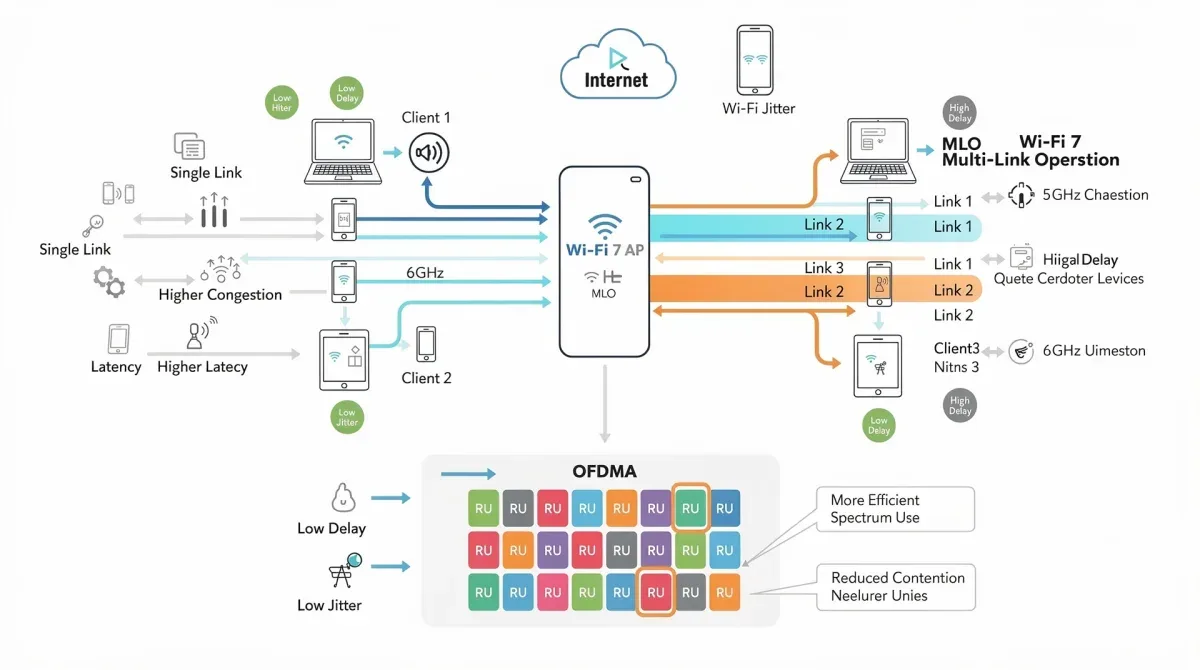
MLO allows devices to simultaneously transmit and receive data across different frequency bands (2.4 GHz, 5 GHz, and 6 GHz). This capability significantly enhances bandwidth and reduces congestion, which are primary contributors to latency.
Imagine multiple lanes on a highway, all open to your data traffic at once. MLO essentially creates these parallel pathways, ensuring that even under heavy network load, your devices maintain a low-latency connection.
Increased Throughput: Combines bandwidth from multiple bands for higher data rates.
Improved Reliability: Offers redundancy, as data can switch bands if one becomes congested.
Reduced Latency: By using multiple links, data reaches its destination faster, avoiding bottlenecks.
Preamble Puncturing and 4096-QAM
Preamble Puncturing allows a Wi-Fi 7 access point to ignore interference on specific sub-channels within a wider channel, using the remaining clear sub-channels for data transmission. This maximizes channel utilization and prevents minor interference from crippling an entire channel.
4096-QAM (Quadrature Amplitude Modulation) is a higher-order modulation scheme that packs more data into each signal. This means more information can be transmitted in the same amount of time, leading to higher speeds and, consequently, lower latency.
These innovations collectively contribute to the Wi-Fi 7 promise of a more efficient and responsive wireless network. Configuring these features correctly is paramount to seeing the advertised latency improvements.
Choosing the Right Wi-Fi 7 Hardware for Optimal Latency
The foundation of a low-latency Wi-Fi 7 network begins with selecting the appropriate hardware. Not all Wi-Fi 7 devices are created equal, and understanding key specifications is crucial.
Investing in quality routers and client devices that fully support Wi-Fi 7's advanced features is non-negotiable. Subpar hardware can bottleneck even the most meticulously configured network.
Consider your specific needs, such as the size of your home, the number of connected devices, and the types of applications you use most frequently. These factors will guide your hardware selection process.
Essential Router Features to Look For
When purchasing a Wi-Fi 7 router, prioritize models that explicitly support MLO across all three bands (2.4 GHz, 5 GHz, and 6 GHz). Ensure it has multiple Ethernet ports, preferably 2.5 Gigabit or 10 Gigabit, to handle the increased internal network traffic.
Look for routers with robust processors and ample RAM, as these components are vital for handling complex network management tasks and maintaining low latency under stress. Advanced Quality of Service (QoS) features are also a significant plus.
A router with strong antenna design and beamforming capabilities will also improve signal strength and coverage, reducing packet loss and retransmissions, which directly impact latency.
Client Device Compatibility and Upgrades
To truly benefit from Wi-Fi 7's latency reduction, your client devices—smartphones, laptops, gaming consoles—must also support the standard. Check specifications for Wi-Fi 7 (802.11be) compatibility.
For older devices, consider upgrading Wi-Fi adapters to Wi-Fi 7 capable versions, if possible. While this might not be feasible for all devices, upgrading key devices like gaming PCs or streaming boxes can make a substantial difference.
Remember that the network's performance is only as strong as its weakest link. A powerful Wi-Fi 7 router paired with outdated client devices will not deliver the desired latency improvements.
Initial Setup and Placement Strategies for Wi-Fi 7
Proper physical setup and strategic placement of your Wi-Fi 7 router are foundational steps in optimizing network performance and reducing latency. A well-positioned router can eliminate dead zones and maximize signal strength.
Ignoring these basic principles can severely undermine even the most advanced Wi-Fi 7 hardware. The goal is to ensure a clear line of sight and minimize interference from other electronics.
This initial configuration phase sets the stage for all subsequent software-based optimizations. Getting it right from the start saves time and effort in the long run.
Optimal Router Placement
Place your Wi-Fi 7 router in a central location within your home, ideally elevated and away from walls or large obstructions. This ensures the signal can propagate evenly throughout your living space.
Avoid placing the router near devices that emit electromagnetic interference, such as microwaves, cordless phones, or large metal objects. These can degrade signal quality and increase latency.
Consider the layout of your home and where your most latency-sensitive devices are located. Positioning the router closer to these devices can provide a direct and stronger connection.
Antenna Orientation and Coverage Expansion
If your Wi-Fi 7 router has external antennas, experiment with their orientation. Generally, pointing them vertically or at slight angles can improve coverage. Refer to your router's manual for specific recommendations.
For larger homes or those with multiple floors, consider a mesh Wi-Fi 7 system. Mesh networks provide seamless coverage and can maintain low latency by intelligently routing traffic through the best available node.
Extending coverage effectively means fewer signal drops and less retransmission, both of which are critical for maintaining a low-latency environment. A robust signal is the backbone of a responsive network.
Advanced Wi-Fi 7 Settings: Channel Optimization and Band Steering
Once your Wi-Fi 7 hardware is physically optimized, diving into advanced settings through the router's interface is the next crucial step. These configurations directly impact latency and network efficiency.
Channel optimization and effective band steering are not just about speed; they are about ensuring a stable and responsive connection for all your devices. Incorrect settings can lead to congestion and increased delays.
Many users overlook these settings, but they are vital for realizing the full potential of How to Configure Wi-Fi 7 Hardware. A few tweaks can make a significant difference.
Selecting Optimal Wi-Fi Channels
Wi-Fi 7 operates across 2.4 GHz, 5 GHz, and 6 GHz bands. Use a Wi-Fi analyzer tool (available as apps for smartphones or desktop software) to identify the least congested channels in your area for each band.
For the 6 GHz band, interference is typically minimal, allowing for wider channels and maximum performance. However, for 2.4 GHz and 5 GHz, choosing non-overlapping channels (e.g., 1, 6, 11 for 2.4 GHz; 36, 40, 44, 48 for 5 GHz) is essential.
6 GHz Band: Prioritize for latency-sensitive devices; minimal interference.
5 GHz Band: Good balance of speed and range; select least congested wide channels.
2.4 GHz Band: Best for older devices or those needing longer range; higher interference.
Configuring Band Steering and MLO Prioritization
Band steering directs devices to the optimal Wi-Fi band (usually 5 GHz or 6 GHz) based on signal strength and network load. Enable this feature on your Wi-Fi 7 router to ensure devices are always on the fastest, least congested band.
Within your Wi-Fi 7 router settings, look for options to prioritize MLO for specific devices or applications. For instance, you might prioritize a gaming console or VR headset to leverage MLO's full benefits for critical low-latency tasks.
Proper band steering and MLO prioritization ensure that your Wi-Fi 7 network intelligently allocates resources, preventing single-band bottlenecks and consistently delivering a low-latency experience.
Quality of Service (QoS) and Traffic Prioritization in Wi-Fi 7
Quality of Service (QoS) settings are indispensable for managing network traffic and ensuring that latency-sensitive applications receive priority. This is particularly important in busy home networks where multiple devices compete for bandwidth.
Without proper QoS configuration, a large file download could easily hog bandwidth, causing significant latency spikes for online gaming or video calls. Wi-Fi 7's advanced capabilities make QoS even more effective.
Understanding and implementing QoS effectively is a core component of How to Configure Wi-Fi 7 Hardware. It allows you to dictate which traffic matters most.
Setting Up Application and Device Prioritization
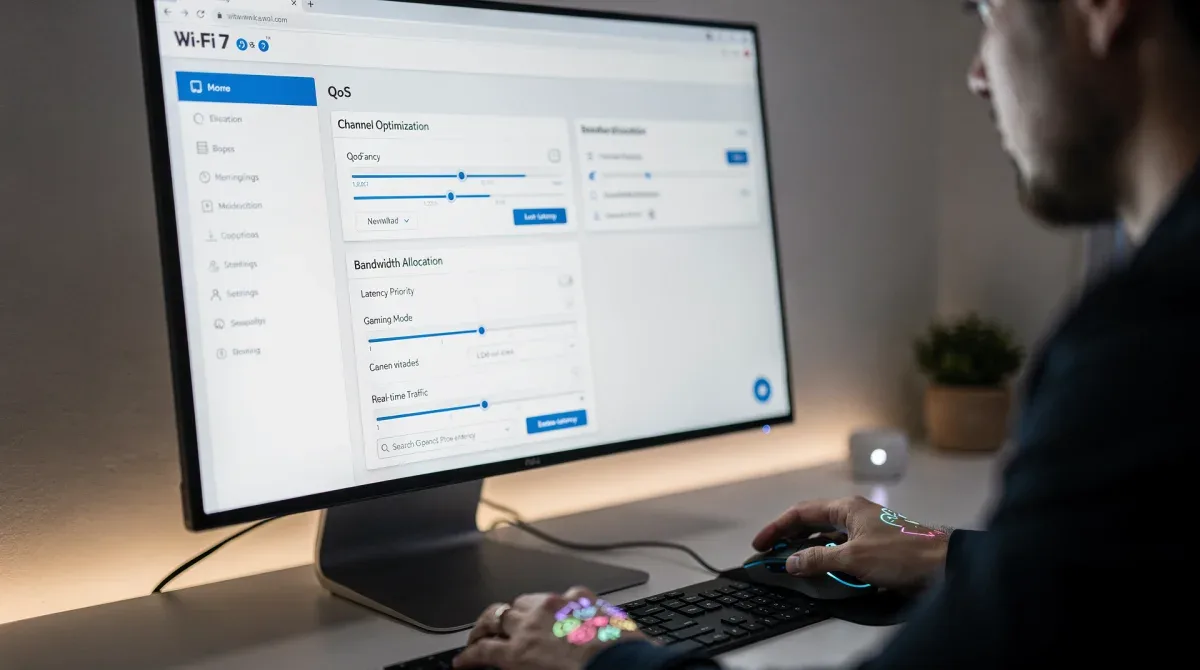
Access your Wi-Fi 7 router's QoS settings. Here, you can typically prioritize specific applications (e.g., online games, video conferencing) or individual devices (e.g., your primary workstation, a smart TV).
Many Wi-Fi 7 routers offer intelligent QoS features that can automatically detect and prioritize latency-sensitive traffic. Ensure these features are enabled and correctly configured according to your usage patterns.
By giving priority to critical tasks, you effectively shield them from the adverse effects of network congestion, ensuring a consistently low-latency experience where it matters most.
Bandwidth Allocation and Throttling
Beyond prioritization, some advanced QoS settings allow for bandwidth allocation, where you can reserve a minimum amount of bandwidth for certain devices or applications. This guarantees they always have enough resources.
Conversely, you can also throttle bandwidth for less critical tasks, such as background updates or file backups, preventing them from consuming excessive network resources during peak usage times.
Careful management of bandwidth through QoS ensures that your Wi-Fi 7 network remains agile and responsive, allowing you to cut network latency by 40% across home devices without compromise.
Monitoring and Fine-Tuning Your Wi-Fi 7 Network
Configuring your Wi-Fi 7 hardware is not a one-time event; it's an ongoing process of monitoring and fine-tuning. Network conditions can change, and regular checks ensure optimal performance.
Tools and utilities are available to help you keep an eye on your network's health and identify potential issues before they impact latency. Proactive monitoring is key to maintaining a high-performance network.
Regular adjustments based on real-world usage will help you sustain the promised latency reductions. This iterative approach ensures your Wi-Fi 7 setup remains efficient and responsive.
Utilizing Network Monitoring Tools
Use your router's built-in network monitoring tools to track bandwidth usage, connected devices, and potential interference. Many Wi-Fi 7 routers offer detailed dashboards and logs.
Third-party network analysis tools can provide deeper insights into latency, packet loss, and signal strength. These tools can help pinpoint specific areas for improvement or troubleshooting.
Pay attention to any sudden increases in latency or drops in speed. These can indicate new sources of interference, overloaded channels, or issues with specific devices.
Regular Firmware Updates and Adjustments
Always keep your Wi-Fi 7 router's firmware updated to the latest version. Manufacturers frequently release updates that include performance enhancements, security patches, and bug fixes that can impact latency.
As you add new devices or change your usage patterns, revisit your QoS settings and channel selections. What was optimal yesterday might not be optimal today.
Periodic speed tests and latency checks using reliable online tools will help you verify that your Wi-Fi 7 network is consistently delivering the expected performance gains. This vigilance is crucial for sustained low latency.
Troubleshooting Common Wi-Fi 7 Latency Issues
Even with meticulous configuration, you might encounter occasional latency issues with your Wi-Fi 7 network. Knowing how to troubleshoot these common problems is essential for maintaining performance.
Many issues can be resolved with simple steps, while others may require a deeper dive into settings or hardware. A systematic approach to troubleshooting saves time and frustration.
Understanding the potential culprits behind increased latency allows you to quickly diagnose and rectify problems, ensuring your efforts to configure Wi-Fi 7 hardware to cut network latency by 40% across home devices remain effective.
Identifying and Resolving Interference
Interference from neighboring Wi-Fi networks or other wireless devices (like Bluetooth, cordless phones, or microwaves) is a common cause of increased latency. Use a Wi-Fi analyzer to identify interfering signals.
If interference is detected on your chosen channels, switch to less congested ones, especially on the 2.4 GHz and 5 GHz bands. The 6 GHz band is generally less susceptible to external interference.
Check for neighboring Wi-Fi: Use an analyzer to see channel usage.
Identify non-Wi-Fi interference: Microwaves, baby monitors, etc.
Adjust channels: Move to less crowded frequencies.
Addressing Device-Specific Latency Problems
Sometimes, latency issues are specific to a single device rather than the entire network. Check the device's Wi-Fi adapter drivers, ensuring they are up to date and compatible with Wi-Fi 7.
Ensure the device is connecting to the optimal band (5 GHz or 6 GHz) and not reverting to the slower 2.4 GHz band. Verify that the device's power-saving settings are not aggressively reducing Wi-Fi performance.
If a device consistently experiences high latency, try connecting it via Ethernet if possible, or consider replacing its Wi-Fi adapter if it's an older model that struggles with Wi-Fi 7's demands.
The Future Impact of Wi-Fi 7 on Home Connectivity
Wi-Fi 7 is not just an incremental upgrade; it represents a significant leap forward in wireless technology, poised to reshape home connectivity for years to come. Its impact extends beyond mere speed increases.
The ability to reliably cut network latency by 40% across home devices will unlock new possibilities for immersive experiences and seamless digital interactions. This will become the new baseline expectation.
As more devices become Wi-Fi 7 compatible and users learn how to configure Wi-Fi 7 hardware, the benefits will become ubiquitous, transforming everything from remote work to entertainment.
Enabling Next-Generation Applications
The ultra-low latency and high bandwidth of Wi-Fi 7 are critical enablers for emerging technologies. Think about truly lag-free cloud gaming, realistic metaverse experiences, and ultra-high-definition video conferencing without a single stutter.
Smart homes will become even smarter, with instantaneous communication between devices, leading to more responsive automation and a truly connected living environment. The potential for innovation is immense.
These applications, once hindered by network limitations, will flourish under the robust and responsive umbrella of Wi-Fi 7, making our digital lives smoother and more integrated.
Long-Term Benefits for Home Users
For the average home user, the long-term benefits of Wi-Fi 7 will manifest as a consistently reliable and fast internet experience, regardless of how many devices are connected or what tasks they are performing.
Frustrations over buffering, lag, and dropped connections will become a thing of the past. The investment in Wi-Fi 7 hardware and its proper configuration will pay dividends in enhanced productivity and entertainment.
As the digital landscape evolves, the foundational improvements brought by Wi-Fi 7, particularly in latency reduction, will ensure that home networks are future-proofed and ready for whatever comes next.
Key Configuration | Benefit for Latency |
|---|---|
Multi-Link Operation (MLO) | Simultaneous data across bands reduces congestion and speeds delivery. |
Optimal Channel Selection | Minimizes interference, ensuring clear, fast data pathways. |
Quality of Service (QoS) | Prioritizes latency-sensitive traffic for critical applications. |
Router Placement | Ensures strong, stable signal throughout the home, reducing retransmissions. |
Frequently Asked Questions About Wi-Fi 7 Latency
What is the primary benefit of Wi-Fi 7 for home users?▼
The primary benefit of Wi-Fi 7 for home users is significantly reduced network latency and increased efficiency, alongside higher speeds. This translates to smoother online gaming, lag-free 8K streaming, and more responsive VR/AR experiences, making digital interactions much more fluid and enjoyable across multiple devices simultaneously.
How does Multi-Link Operation (MLO) reduce latency?▼
MLO reduces latency by allowing Wi-Fi 7 devices to send and receive data across multiple frequency bands (2.4 GHz, 5 GHz, 6 GHz) simultaneously. This parallel processing increases bandwidth and provides redundant pathways, ensuring data reaches its destination faster and more reliably, even in congested network environments, thus minimizing delays.
Do I need new hardware to experience Wi-Fi 7's low latency?▼
Yes, to fully experience Wi-Fi 7's low latency benefits, you will need both a Wi-Fi 7 compatible router and client devices (like smartphones, laptops, or gaming consoles) that support the 802.11be standard. While Wi-Fi 7 is backward compatible, older hardware cannot leverage its advanced features like MLO or 4096-QAM for optimal latency reduction.
What role does QoS play in cutting network latency?▼
Quality of Service (QoS) allows you to prioritize specific applications or devices on your network, ensuring that latency-sensitive traffic (like online gaming or video calls) receives preferential treatment. By allocating bandwidth and minimizing delays for critical data, QoS prevents less urgent activities from causing lag spikes, directly contributing to lower overall network latency.
How often should I check my Wi-Fi 7 network settings?▼
It is advisable to check and fine-tune your Wi-Fi 7 network settings periodically, especially after adding new devices, experiencing performance issues, or when new firmware updates are available. Regular monitoring of channel congestion, device prioritization, and overall network health ensures your configuration remains optimal for cutting network latency by 40% across home devices.
What this means
The ongoing developments around How to Configure Wi-Fi 7 Hardware signify a pivotal shift in home networking capabilities. This isn't merely about faster internet; it's about a fundamental improvement in network responsiveness that will redefine user experience across all connected devices.
As the technology matures and adoption increases, users in the U.S. can expect a more seamless digital life, free from the frustrations of lag and buffering. Staying informed on best practices for configuration and hardware updates will be key to maximizing these benefits.