Strip Background Telemetry in Windows 11: Reclaim RAM
Advertisements
Watching your PC’s fans spin up while you aren't even touching the keyboard is a classic sign of silent background bloat eating system resources. Stripping unnecessary background telemetry in Windows 11 lets you reclaim up to 2.5GB of idle RAM so your hardware focuses on active apps rather than diagnostic reporting.
Standard privacy toggles only trim optional diagnostics, leaving services like Connected User Experiences and Telemetry (DiagTrack), scheduled compatibility appraisers, and background push routines active in memory. Disabling non-essential background services and trimming scheduled data-collection tasks frees working memory without breaking core operating system updates or security.
Whether you run an older 8GB laptop or want maximum headroom for gaming and creative suites, a targeted service cleanup delivers smoother multitasking. Here are the safe service tweaks, Task Scheduler stops, and rollback checks to apply next.
Understanding Windows 11 Telemetry and its Impact
Windows 11, like its predecessors, incorporates various telemetry services designed to collect diagnostic and usage data. While Microsoft states this data helps improve the operating system, it often runs in the background, consuming valuable system resources, including RAM.
The continuous operation of these services can lead to a noticeable decrease in performance, especially on machines with limited RAM. Users have long sought methods to mitigate this impact, aiming to free up resources for more critical applications.
The core issue revolves around the balance between system improvement through data collection and user privacy and performance. Finding effective ways to strip background telemetry in Windows 11 to reclaim up to 2.5GB of idle RAM addresses both concerns directly.
What is Telemetry in Windows 11?
Telemetry in Windows 11 refers to the system's ability to collect data about device usage, performance, and issues. This data is then sent to Microsoft to help identify bugs, understand user behavior, and develop future updates.
While the intention is to enhance the user experience, the sheer volume and continuous nature of this data collection can be resource-intensive. Many users are unaware of the extent to which these services operate in the background.
The debate over telemetry often centers on privacy implications and the tangible impact on system performance. The ability to effectively strip background telemetry in Windows 11 to reclaim up to 2.5GB of idle RAM directly addresses these concerns.
How Telemetry Consumes RAM
Telemetry services require active processes and memory allocations to function. These background tasks continually monitor system activities, package data, and prepare it for transmission, all of which demand RAM.
On a system with 8GB or 16GB of RAM, even a few hundred megabytes consumed by telemetry can impact overall responsiveness, especially when running multiple applications. The cumulative effect can be significant.
By reducing or disabling these services, the memory they would otherwise occupy becomes available for other applications or simply remains idle, ready for use. This is the fundamental principle behind efforts to strip background telemetry in Windows 11 to reclaim up to 2.5GB of idle RAM.
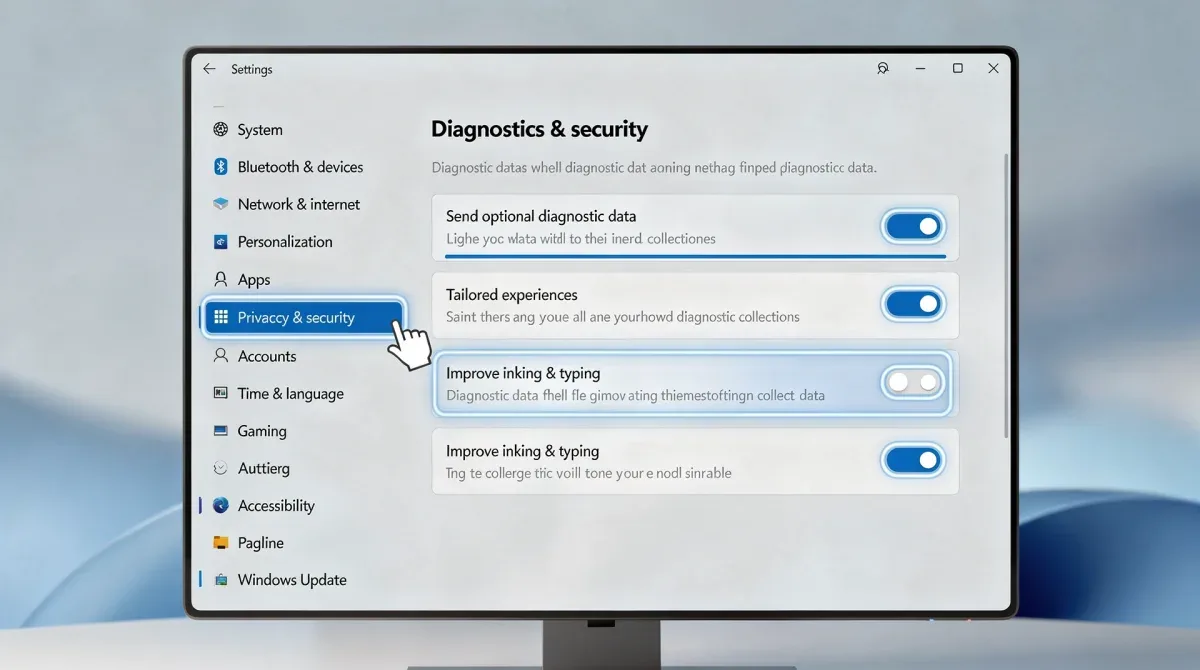
Advanced Techniques for RAM Reclamation
Beyond basic settings and service management, advanced users can explore methods involving the Registry Editor and third-party tools. These techniques offer even deeper control but come with increased risk if not performed correctly.
Modifying the Windows Registry directly allows for changes that are not accessible through standard graphical interfaces. Such modifications can have a profound impact on system behavior.
The careful application of these advanced methods is key to successfully strip background telemetry in Windows 11 to reclaim up to 2.5GB of idle RAM and achieve optimal performance without unintended side effects.
Modifying the Registry Editor
The Windows Registry is a hierarchical database that stores low-level settings for the operating system and applications. Specific registry keys can be altered to disable telemetry components.
For instance, creating or modifying certain DWORD values under 'HKEY_LOCAL_MACHINE\SOFTWARE\Policies\Microsoft\Windows\DataCollection' can effectively turn off diagnostic data collection.
This method requires precise execution, as incorrect registry edits can lead to system errors or even render Windows unbootable. Always back up the registry before making any changes to strip background telemetry in Windows 11 to reclaim up to 2.5GB of idle RAM.
Utilizing Third-Party Tools
Several third-party applications are designed to help users manage and disable Windows telemetry. These tools often provide a user-friendly interface to simplify complex system modifications.
Examples include tools like O&O ShutUp10++ (which also works for Windows 11) or similar privacy-focused utilities. They automate many of the steps involved in disabling telemetry, making the process more accessible.
While convenient, users should exercise caution when selecting third-party software, ensuring they download from reputable sources to avoid malware or unwanted bundled applications. These tools aim to help strip background telemetry in Windows 11 to reclaim up to 2.5GB of idle RAM effectively.
Expected Performance Gains and Risks
Reclaiming up to 2.5GB of idle RAM can lead to a noticeable improvement in system responsiveness, application loading times, and overall multitasking capabilities. This is particularly beneficial for users with 8GB or 16GB of RAM.
The freed-up memory means the system relies less on slower virtual memory (page file), leading to faster operations. Users will likely experience a snappier Windows 11 environment.
However, there are inherent risks associated with aggressively disabling telemetry. Microsoft uses this data for critical updates and security patches, so complete removal might affect future system stability or feature availability. The goal is to safely strip background telemetry in Windows 11 to reclaim up to 2.5GB of idle RAM.
Benefits of Reclaiming RAM
Improved system responsiveness and fluidity.
Faster application launch times and smoother multitasking.
Reduced reliance on virtual memory, extending SSD/HDD lifespan.
Enhanced gaming performance and creative application efficiency.
The direct benefit of more available RAM translates into a more enjoyable and productive computing experience. Every megabyte reclaimed contributes to a more efficient system.
Users will notice fewer stutters, quicker transitions between tasks, and an overall feeling of a more powerful machine. This is the primary motivation for many to strip background telemetry in Windows 11 to reclaim up to 2.5GB of idle RAM.
Potential Risks and Considerations
Reduced diagnostic data for troubleshooting system issues.
Possible impact on future Windows updates or feature rollouts.
Unintended side effects if critical services are mistakenly disabled.
Security implications if telemetry related to threat detection is affected.
While the benefits are clear, it is crucial to proceed with caution. Disabling too much telemetry can hinder Microsoft's ability to provide timely fixes or security updates, leaving the system vulnerable.
Users should always create restore points before making significant system changes. This allows for easy rollback if any issues arise after attempting to strip background telemetry in Windows 11 to reclaim up to 2.5GB of idle RAM.

Verifying RAM Reclamation and Performance Boost
After implementing methods to strip background telemetry in Windows 11 to reclaim up to 2.5GB of idle RAM, verifying the actual gains is essential. Tools like Task Manager and Resource Monitor can provide real-time insights into memory usage.
Monitoring these metrics before and after changes allows users to quantify the impact of their optimizations. This data-driven approach confirms the effectiveness of the chosen methods.
Observing a sustained reduction in idle RAM usage and an increase in available memory validates the efforts to strip background telemetry in Windows 11 to reclaim up to 2.5GB of idle RAM.
Using Task Manager to Monitor RAM
Task Manager, accessible via Ctrl+Shift+Esc, offers a comprehensive overview of system resources, including RAM usage. The 'Performance' tab shows overall memory utilization, while the 'Processes' tab details memory consumption by individual applications and background processes.
Before making any changes, note down the baseline idle RAM usage. After implementing telemetry stripping methods, observe the 'Memory' graph and 'Available' memory in the 'Performance' tab for improvements.
A significant drop in idle RAM usage and an increase in available memory will indicate success. This direct observation is crucial when you strip background telemetry in Windows 11 to reclaim up to 2.5GB of idle RAM.
Benchmarking for Performance Gains
For a more objective assessment, users can employ benchmarking tools. These applications run a series of tests to measure system performance before and after optimization.
Tools like PCMark 10 or Cinebench can provide scores that reflect overall system speed and responsiveness. Comparing these scores will highlight any tangible performance improvements.
While benchmarking offers a quantitative measure, even subjective improvements in daily usage are a strong indicator of success. The ultimate goal is to enhance the user experience after you strip background telemetry in Windows 11 to reclaim up to 2.5GB of idle RAM.
Future of Telemetry in Windows and User Control
The ongoing debate over telemetry highlights a broader trend towards greater user control over personal data and system resources. Microsoft is continually evolving its approach to privacy and data collection.
Future Windows updates may introduce more transparent and user-friendly controls for telemetry, responding to public demand. The balance between system diagnostics and user autonomy remains a key challenge.
As users become more tech-savvy, the demand to effectively strip background telemetry in Windows 11 to reclaim up to 2.5GB of idle RAM will likely influence future operating system designs.
Microsoft's Evolving Stance
Microsoft has, in recent years, made efforts to be more transparent about the data it collects and to provide users with more control. This includes clearer privacy statements and more accessible settings.
However, the default settings often lean towards comprehensive data collection, requiring users to actively opt-out or modify system configurations. This proactive approach by users is what drives the current discussions.
The company's future updates will likely continue to refine these controls, potentially offering more streamlined ways to manage telemetry. The ability to strip background telemetry in Windows 11 to reclaim up to 2.5GB of idle RAM will remain a user priority.
The Role of Community and Advocacy
User communities and privacy advocacy groups play a significant role in pushing for greater transparency and control. Their collective voice often influences software development and policy changes.
Guides and tutorials on how to disable telemetry, like the methods discussed here, empower users to take control of their systems. This grassroots movement often fills gaps where official controls are lacking.
The ongoing efforts to strip background telemetry in Windows 11 to reclaim up to 2.5GB of idle RAM are a testament to the power of user advocacy in shaping the future of technology.
Key Point | Brief Description |
|---|---|
RAM Reclamation | Up to 2.5GB idle RAM can be reclaimed by disabling telemetry. |
Performance Boost | Improved system responsiveness and faster application loading. |
Methods | Privacy settings, Group Policy, Services Manager, Registry Editor, third-party tools. |
Risks | Potential impact on system updates and diagnostic troubleshooting. |
Frequently Asked Questions About Windows 11 Telemetry and RAM
What is Windows 11 telemetry?▼
Windows 11 telemetry refers to the system's process of collecting diagnostic and usage data about your device. This data is sent to Microsoft to help improve the operating system, identify bugs, and understand user behavior patterns for future updates and features. It runs in the background, consuming system resources.
How much RAM can be reclaimed by disabling telemetry?▼
Reports indicate that users can reclaim up to 2.5GB of idle RAM by effectively disabling background telemetry services in Windows 11. This significant amount of freed memory can lead to noticeable performance improvements, especially on systems with 8GB or 16GB of total RAM, enhancing overall system responsiveness.
Is it safe to disable Windows 11 telemetry?▼
While disabling telemetry can free up RAM and improve performance, it carries some risks. Microsoft uses telemetry for critical updates and security patches. Aggressively disabling all telemetry might affect system stability or the ability to receive important fixes. It's recommended to proceed with caution and create a restore point.
What are the primary methods to strip background telemetry?▼
Primary methods include adjusting privacy settings in Windows 11, using the Group Policy Editor for Pro/Enterprise versions, disabling specific services via the Services Manager, modifying the Registry Editor, and utilizing reputable third-party tools. Each method offers different levels of control and complexity, targeting various telemetry components.
How can I verify the RAM reclamation after disabling telemetry?▼
You can verify RAM reclamation using Windows Task Manager or Resource Monitor. Observe the 'Performance' tab in Task Manager to see overall memory usage and 'Available' RAM before and after implementing changes. A noticeable increase in available memory and a decrease in idle RAM usage will confirm the effectiveness of your optimizations.
What this means
The ability to strip background telemetry in Windows 11 to reclaim up to 2.5GB of idle RAM represents a significant opportunity for users seeking enhanced system performance. This development underscores the ongoing demand for greater user control over operating system resources and data privacy.
Moving forward, it will be crucial to monitor Microsoft's response to these community-driven optimizations and any potential official tools or settings that emerge. The impact on system stability and future updates remains a key consideration, emphasizing the need for informed decisions when optimizing your Windows 11 experience.